 Laptop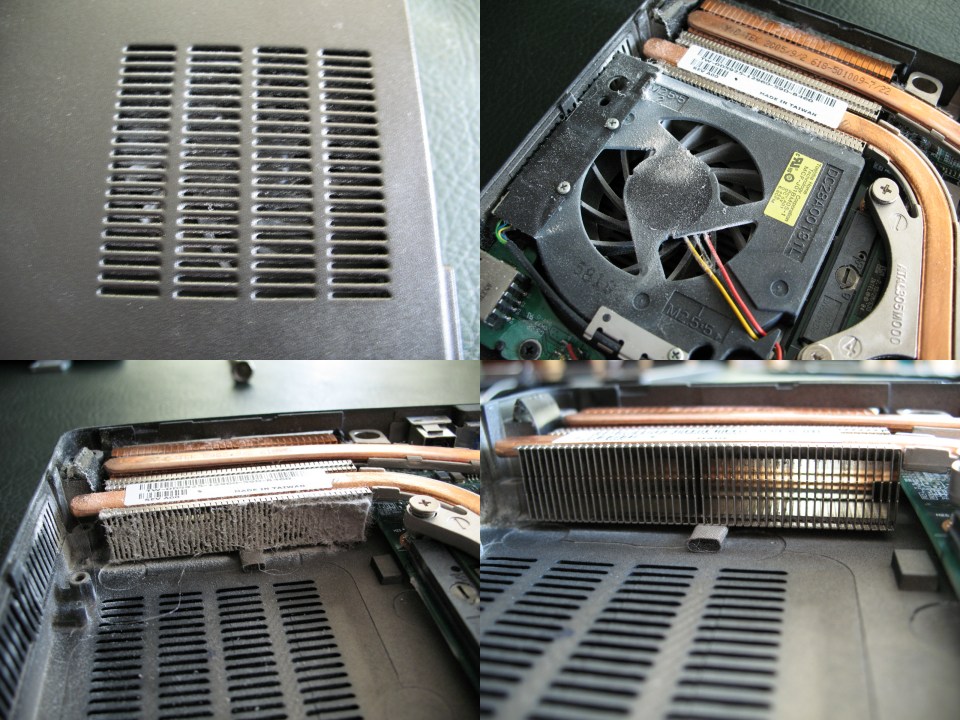
Heat is the primary enemy of laptop longevity. When a laptop runs hotter than its components are designed to handle, the processor and GPU reduce their performance to stay within safe temperature limits — a process called thermal throttling. In severe cases, the system shuts down without warning to prevent hardware damage.
The good news is that most laptop overheating problems have straightforward causes and can be addressed without professional help. This guide covers how to measure temperatures accurately, identify the root cause, and apply the appropriate fix.
Normal vs. Concerning Temperatures
Before diagnosing a problem, it helps to know what temperatures are actually normal. Laptop CPUs are designed to operate up to around 95–105°C depending on the manufacturer and generation. Sustained operation above 90°C under load is worth investigating, but brief peaks during intensive tasks are not unusual.
- Idle (desktop, light browsing): 35–55°C — normal
- Moderate load (video playback, office work): 55–75°C — normal
- Heavy load (video encoding, gaming): 75–90°C — acceptable
- Heavy load sustained above 90°C: investigate cooling
- Throttling detected (clock speed drops under load): cooling system needs attention
Monitoring Temperatures
You cannot diagnose a thermal problem without accurate temperature data. The following tools are reliable and free:
HWiNFO (Windows)
Available at hwinfo.com. Run in Sensors-only mode to see CPU package temperature, individual core temperatures, GPU temperature, and fan speeds in real time. HWiNFO also logs data to a CSV file, which is useful for capturing temperature peaks during a stress test.
ThrottleStop (Windows)
Originally designed for managing Intel CPU power limits, ThrottleStop also shows whether the CPU is actively throttling and why. The PROCHOT indicator lights up when the CPU is throttling due to temperature. Download from TechPowerUp.
iStatMenus (macOS)
A paid menu bar application that shows CPU and GPU temperatures alongside fan speed. For a free alternative, Stats provides similar data as an open-source option.
Common Causes of Overheating
Dust-Clogged Heatsinks and Vents
This is the most common cause of overheating in laptops that are more than two years old. Dust accumulates on the heatsink fins and in the exhaust vents, reducing airflow and trapping heat. A laptop that ran quietly and coolly when new but now runs hot and loud almost certainly has a dust problem.
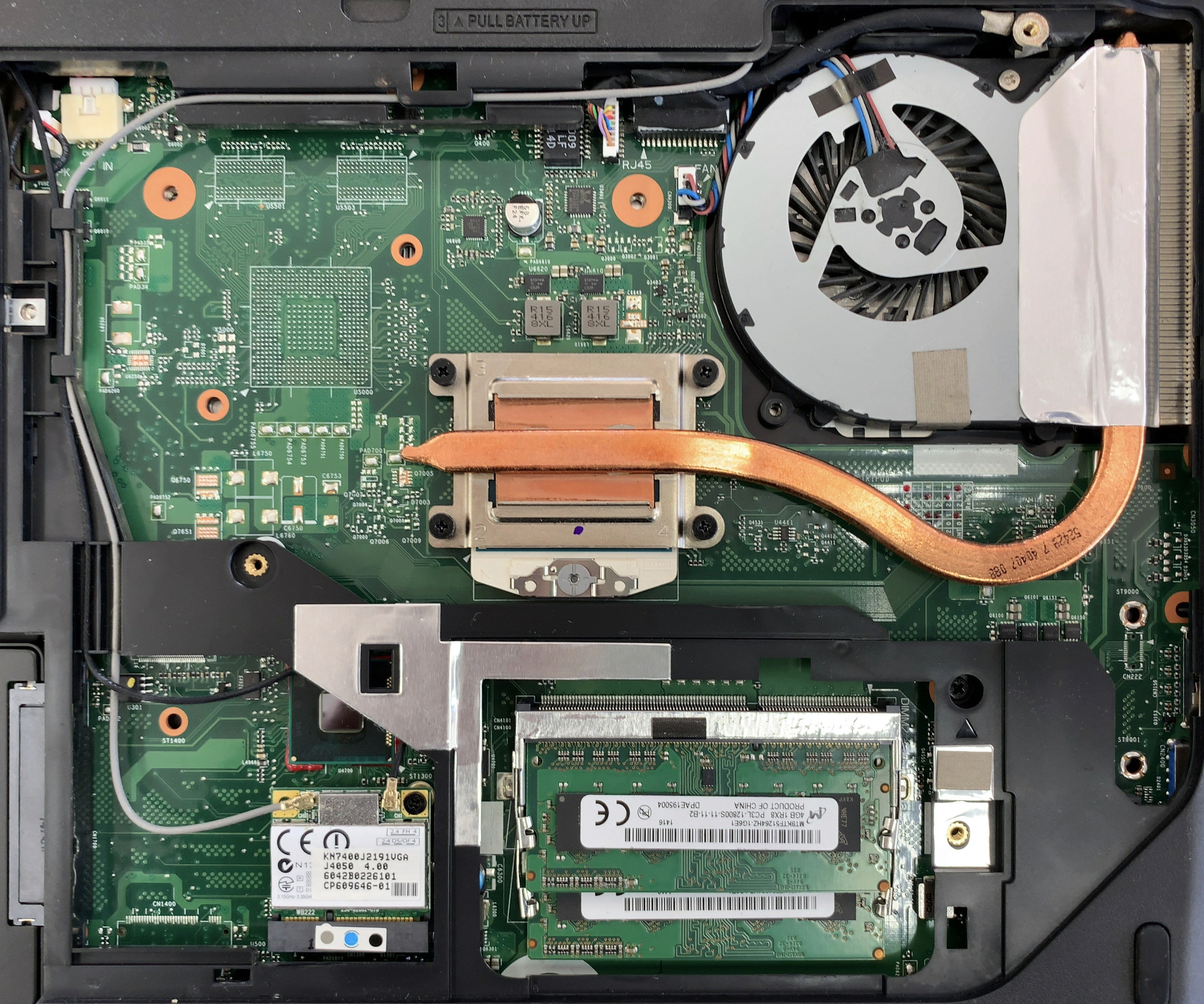
The fix is cleaning. On most laptops, you can remove the bottom panel and use compressed air to blow dust out of the heatsink fins and exhaust vents. Direct the airflow so dust exits through the vents rather than being pushed deeper into the machine. A can of compressed air costs a few dollars and can make a dramatic difference — temperature drops of 15–20°C after cleaning are not uncommon.
Fujitsu LifeBook models with a single bottom exhaust vent tend to accumulate dust faster than models with side vents. If you own a LifeBook, cleaning the cooling system annually is a reasonable maintenance schedule.
Dried Thermal Paste
Thermal paste fills microscopic gaps between the CPU/GPU die and the heatsink, improving heat transfer. Over time — typically 3–5 years — thermal paste dries out and becomes less effective. When this happens, the heatsink cannot absorb heat from the chip as efficiently, and temperatures rise even with a clean cooling system.
Replacing thermal paste requires removing the heatsink, cleaning off the old paste with isopropyl alcohol, and applying a thin, even layer of fresh paste. Quality thermal pastes from brands like Noctua, Thermal Grizzly, or Arctic are widely available. This is a more involved repair than dust cleaning but still within reach for anyone comfortable with basic disassembly.
Blocked Ventilation
Using a laptop on a soft surface like a bed or sofa can block the bottom intake vents, significantly reducing airflow. This is a usage habit issue rather than a hardware fault. A laptop stand or even a hard book placed under the laptop can restore adequate airflow.
Background Processes
Sometimes high temperatures are caused by software rather than hardware. A runaway process consuming 100% CPU will generate heat regardless of how clean the cooling system is. Check Task Manager (Windows) or Activity Monitor (macOS) to see if any process is unexpectedly consuming CPU resources.
On Sony VAIO laptops, the VAIO Update service and certain Sony-specific background processes can cause unexpected CPU spikes. If your VAIO runs hot at idle, check whether any Sony background services are consuming resources.
Thermal Throttling: What It Looks Like
Thermal throttling is the CPU reducing its clock speed to generate less heat. From the user's perspective, it manifests as sudden slowdowns during demanding tasks — a video that was encoding at full speed suddenly slows down, or a game that was running smoothly starts stuttering.
In HWiNFO, you can see the CPU's current clock speed alongside its maximum rated speed. If the clock speed is consistently below the rated maximum during a task that should be demanding, throttling is occurring. ThrottleStop will show the specific reason (temperature, power limit, or current limit).
Sharp PC Thermal Notes
Sharp laptops sold in Japan are generally well-engineered thermally, but their compact form factor means the cooling system has less margin than larger laptops. Sharp PCs tend to run warmer under sustained load than equivalent-spec laptops from other brands. This is by design rather than a fault, but it does mean that dust cleaning is particularly important to maintain the intended thermal performance.
Last updated: March 12, 2026